Standalone Activities - TypeScript SDK
Temporal TypeScript SDK support for Standalone Activities is at Pre-release.
Standalone Activities are Activities that run independently, without being orchestrated by a Workflow. Instead of starting an Activity from within a Workflow Definition, you start a Standalone Activity directly from a Temporal Client.
The way you write the Activity and register it with a Worker is identical to Workflow Activities. The only difference is that you execute a Standalone Activity directly from your Temporal Client.
This page covers the following:
- Get Started with Standalone Activities
- Write an Activity Function
- Run a Worker with the Activity registered
- Run the sample client
- Execute a Standalone Activity with type checking
- Execute a Standalone Activity without type checking
- Start a Standalone Activity without waiting for the result
- Get a handle to an existing Standalone Activity
- Wait for the result of a Standalone Activity
- List Standalone Activities
- Count Standalone Activities
- Run Standalone Activities with Temporal Cloud
This documentation uses source code from the standalone-activity sample.
Get Started with Standalone Activities
Prerequisites:
-
Temporal TypeScript SDK (v1.17.0 or higher). See the TypeScript Quickstart for install instructions.
-
Temporal CLI v1.7.0 or higher
Install with Homebrew:
brew install temporalOr see the Temporal CLI install guide for other platforms.
Verify the installation:
temporal --version
Start the Temporal development server:
temporal server start-dev
This command automatically starts the Temporal development server with the Web UI, and creates the default Namespace.
It uses an in-memory database, so do not use it for real use cases.
All code samples on this page use
loadClientConnectConfig()
to configure the Temporal Client connection. It responds to environment
variables and TOML configuration
files, so the same code works against a local dev
server and Temporal Cloud without changes. See Run Standalone Activities with Temporal
Cloud below.
The Temporal Server will now be available for client connections on localhost:7233, and the
Temporal Web UI will now be accessible at http://localhost:8233. Standalone
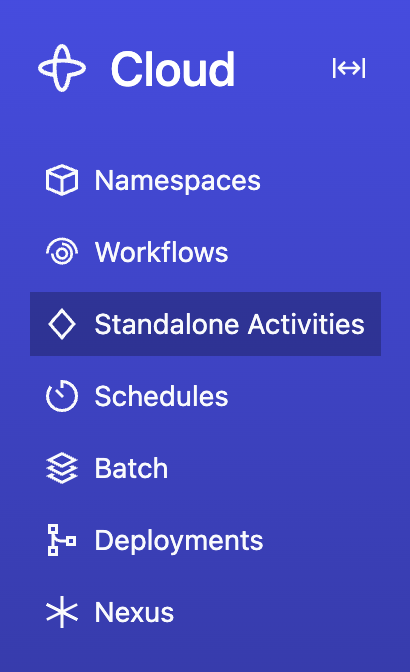
Activities are available from the nav bar item located towards the top left of the page:
Clone the samples-typescript repository to follow along:
git clone https://github.com/temporalio/samples-typescript.git
cd samples-typescript
The sample project is structured as follows:
standalone-activity/src/
├── activities.ts
├── execute.ts
├── list.ts
└── worker.ts
Write an Activity Function
The way you write a Standalone Activity is identical to how you write an Activity to be orchestrated by a Workflow. In fact, an Activity can be executed both as a Standalone Activity and as a Workflow Activity.
standalone-activity/src/activities.ts
import { ApplicationFailure } from '@temporalio/activity';

export async function greet(name: string): Promise<string> {
  if (typeof name !== 'string') {
    throw ApplicationFailure.create({ message: 'name must be a string', nonRetryable: true });
  }
  return `Hello, ${name}!`;
}
Run a Worker with the Activity registered
Running a Worker for Standalone Activities is the same as running a Worker for Workflow Activities — you create a Worker, register the Activity, and run the Worker. The Worker doesn't need to know whether the Activity will be invoked from a Workflow or as a Standalone Activity. See How to run a Worker for more details on Worker setup and configuration options.
standalone-activity/src/worker.ts
import { NativeConnection, Worker } from '@temporalio/worker';
import * as activities from './activities';
import { loadClientConnectConfig } from '@temporalio/envconfig';

async function run() {
  const config = loadClientConnectConfig();
  const connection = await NativeConnection.connect(config.connectionOptions);
  try {
    const worker = await Worker.create({
      connection,
      namespace: 'default',
      taskQueue: 'hello-standalone-activities',
      activities,
    });
    await worker.run();
  } finally {
    await connection.close();
  }
}

run().catch((err) => {
  console.error(err);
  process.exit(1);
});
Open a new terminal, navigate to the samples-typescript/standalone-activity directory, and run the Worker:
npm run start
Leave this terminal running - the Worker needs to stay up to process activities.
Run the sample client
The sample file standalone-activity/src/execute.ts contains a program demonstrating various ways to execute Standalone Activities and fetch results. The code in the following sections is copied from this file.
To run it:
- Make sure the Temporal Server is running (from the Get Started step above).
- Make sure the Worker is running (from the Run a Worker step above).
- Open a new terminal, navigate to the
samples-typescript/standalone-activitydirectory, and run:
npm run execute
Execute a Standalone Activity with type checking
Start by creating a Temporal Client.
Then call client.activity.typed()
to get a typed Activity Client interface. Any TypeScript type can be used as type argument as long
as it has Activity functions as its methods. An easy way to provide such a type is to use the typeof
operator on imported activities. Note that calling typed does not create a new Client object - it
only adjusts the type annotation of the existing Client. typed can be called multiple times with
different type arguments to use the same Client for multiple Activity interfaces.
import { Connection, Client, ActivityExecutionFailedError } from '@temporalio/client';
import { loadClientConnectConfig } from '@temporalio/envconfig';
import * as activities from './activities';
import { nanoid } from 'nanoid';

const config = loadClientConnectConfig();
const connection = await Connection.connect(config.connectionOptions);
const client = new Client({ connection });

const activitiesClient = client.activity.typed<typeof activities>();
Afterwards, call the execute
method of the typed client to execute a Standalone Activity. Call this from your application code, not from
inside a Workflow Definition. This durably enqueues your Standalone Activity in the Temporal Server, waits
for it to be executed on your Worker, and then fetches the result. An unknown or mistyped Activity name, or
wrong argument types will cause compilation to fail.
const taskQueue = 'hello-standalone-activities';
const activityOptions = {
  taskQueue,
  startToCloseTimeout: '10s',
};

// In practice, use a meaningful business identifier, like customer or transaction identifier
const activityId = nanoid();

const result = await activitiesClient.execute('greet', {
  ...activityOptions,
  id: activityId,
  args: ['World'],
});
Execute a Standalone Activity without type checking
Since Activity types are not always available, the start
and execute methods can be
called on ActivityClient directly
without using the typed interface. When called that way, neither the Activity name nor argument types are
checked client-side.
await client.activity.execute('greet', {
  ...activityOptions,
  id: activityId,
  args: [1],
});
Or use the Temporal CLI:
temporal activity execute \
  --type greet \
  --activity-id my-standalone-activity-id \
  --task-queue hello-standalone-activities \
  --start-to-close-timeout 10s \
  --input '"World"'
Start a Standalone Activity without waiting for the result
Starting a Standalone Activity means sending a request to the Temporal Server to durably enqueue your Activity job, without waiting for it to be executed by your Worker.
Use
start method of
the client or the typed interface to start your Standalone Activity and get a handle:
const handle = await activitiesClient.start('greet', {
  ...activityOptions,
  id: activityId,
  args: ['Temporal'],
});
Or use the Temporal CLI:
temporal activity start \
  --type greet \
  --activity-id my-standalone-activity-id \
  --task-queue hello-standalone-activities \
  --start-to-close-timeout 10s \
  --input '"World"'
Get a handle to an existing Standalone Activity
You can also use getHandle
to create a handle to a previously started Standalone Activity. Because the client doesn't know
how the Activity was started, this method is not available in the typed interface. The method
takes an optional type argument to constrain the Activity result type, but correctness of this argument
is not verified.
const newHandle = client.activity.getHandle<string>(activityId);
You can now use the handle to wait for the result, describe, cancel, or terminate the Activity.
Wait for the result of a Standalone Activity
Under the hood, calling execute
is the same as calling start
to durably enqueue the Standalone Activity, and then calling await handle.result() to
wait for the Activity to be executed and fetch the result:
console.log(await handle.result()); // Hello, Temporal!
Or use the Temporal CLI to wait for a result by Activity Id:
temporal activity result --activity-id my-standalone-activity-id
List Standalone Activities
Use
list method of the client to list
Standalone Activity Executions that match a List Filter query. The result is an AsyncIterable
that yields ActivityExecutionInfo
entries.
These APIs return only Standalone Activity Executions. Activities running inside Workflows are not included.
const query = 'TaskQueue="hello-standalone-activities"';

for await (const a of client.activity.list(query)) {
  console.log(
    `${a.activityId} | ${a.activityRunId} | ${a.activityType} | ${a.status} | ${a.closeTime?.toISOString()}`,
  );
}
The sample file standalone-activity/src/list.ts shows how to list and count activities.
Run it:
npm run list
Or use the Temporal CLI:
temporal activity list
The query parameter accepts the same List Filter syntax used for Workflow Visibility. For example, "ActivityType = 'MyActivity' AND Status = 'Running'".
Count Standalone Activities
Use
count method of the client
to count Standalone Activity Executions that match a List Filter query. This returns
the total count of executions (running, completed, failed, etc.) - not the number of queued tasks. It
works the same way as counting Workflow Executions. The same query will work for both listing and
counting.
const { count } = await client.activity.count(query);
console.log(`Total activities: ${count}`);
The sample file standalone-activity/src/list.ts shows how to list and count activities.
Run it:
npm run list
Or use the Temporal CLI:
temporal activity count
Run Standalone Activities with Temporal Cloud
The code samples on this page use loadClientConnectConfig,
so the same code works against Temporal Cloud - just configure the connection via environment variables or a TOML
profile. No code changes are needed.
For a step-by-step guide on connecting to Temporal Cloud, including Namespace creation, certificate generation, and authentication setup in the Cloud UI, see Connect to Temporal Cloud.
Connect with mTLS
Set these environment variables with values from your Temporal Cloud Namespace settings:
export TEMPORAL_ADDRESS=<your-namespace>.<your-account-id>.tmprl.cloud:7233
export TEMPORAL_NAMESPACE=<your-namespace>.<your-account-id>
export TEMPORAL_TLS_CLIENT_CERT_PATH='path/to/your/client.pem'
export TEMPORAL_TLS_CLIENT_KEY_PATH='path/to/your/client.key'
Connect with an API key
Set these environment variables with values from your Temporal Cloud API key settings:
export TEMPORAL_ADDRESS=<region>.<cloud_provider>.api.temporal.io:7233
export TEMPORAL_NAMESPACE=<your-namespace>.<your-account-id>
export TEMPORAL_API_KEY=<your-api-key>
Then run the Worker and starter code as shown in the earlier sections.